|
Form example
|
Previous Top Next |
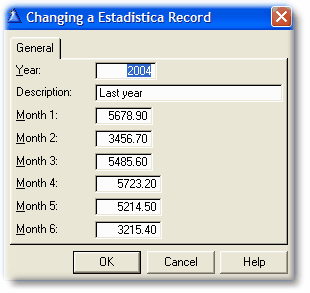
| The "UpdateEstadistica" procedure shows a regular Wizard generated Form with several fields with "amount" data.
|
| When DigitChanger is deactivated, the Form look like this:
|
|
|
| Note that the data doesn't fit in these "entry" type fields, but instead of shown ### like in a browse column or in a string variable, the entries shown "garbage" data. This data looks ok but is actually wrong. If you enter the field and change it, you will loose the correct data.
|
| The first three amount fields are set to "default" width, while the rest are set to a fixed width.
|
|
|
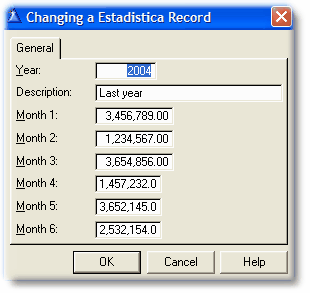
| If you activate the Increase Integer (or fill the variable) with a value of 4, this is how the window will look:
|
|
| Now you can see the values in the first three amount fields, because as they have a default width they resize to fit the new mask.
|
| The other three fields now has the correct mask, but as they have a fixed width value, they still can't show the whole value (although you can select them and see the full data inside the field).
|
|
|
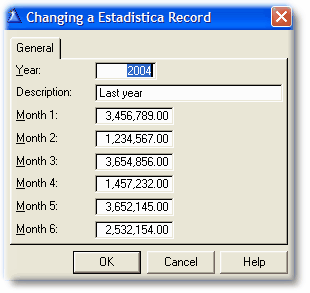
| If you activate the Force resize global setting the your Form will look like this:
|
|
| Now you can see the whole data in all the fields.
|
| Note: The entry type fields are now taking more space than before, so if you place other controls very near these ones, there will be overlapping.
|
|
|
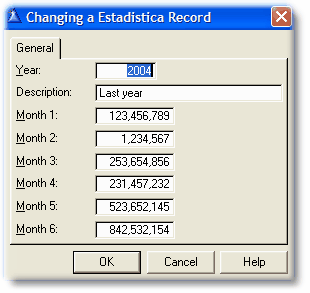
| If you Truncate decimals, the window will change to this:
|
|
| Note that the decimals are no longer there.
|
|
|
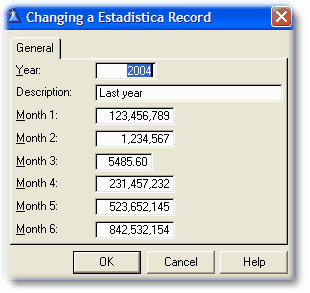
| Now suppose that there is a field that is not an amount, but a quantity (like a stock field). You don't want to touch this particular field, for example, "Month 3". If you set the Exception on the global area, you will see this:
|
|
| Note that all settings are in effect except for this single field.
|
|
|
|
|
|
|
|
|
|
|