When you enter this procedure, you will see the following window:
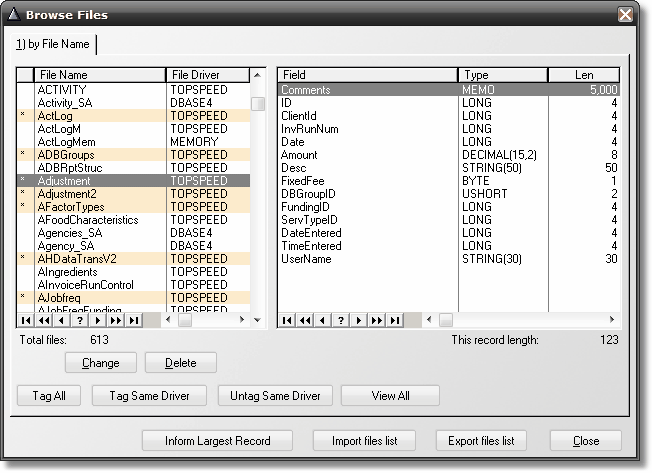
This window shows the list of Files found in your TXD file, in alphabetic order. In the list on the right, you will see a list of Fields belonging to the selected File, in the same order as in your DCT.
You can use the "Change" button to change the name of a file, if the name of the file was imported incorrectly from the TXD. You can use the "Delete" button to permanently erase a file from the list.
Tag All button: With this button you can select all the Files in the list at once. When you press this button, all the Files are selected, and the Tag All button changes to "Untag All". So, if you press the button again, you will unselect all the Files.
Manually tagging files: If you select a file in the list with a mouse click, it will change its tagged status; if it is not selected, it will be selected and if it is selected, it will unselected.
Tag Same Driver: This button will select all the files with the same driver than the selected one, including itself.
Untag Same Driver: This button will unselect all the files with the same driver than the selected one, including itself.
View All: By default, the FullRecord "Audit" files are excluded from the list. Pressing this button you will see them, and you can even select them (but it doesn't make sense to select the audit files because that will cause FullRecord to audit the Audit files... that's why they are disabled by default). When you press this button it changes to "Filter Audit Files". Pressing this button again will once again hide the Audit files.