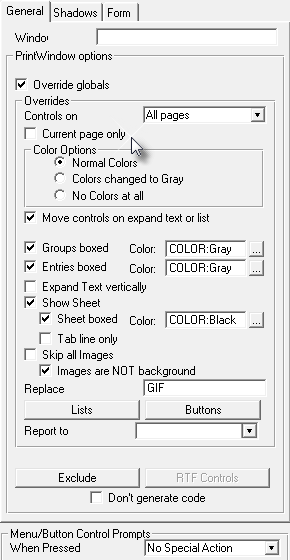
You may use this option even when you select the "Cascade" global extension (see Global extension).
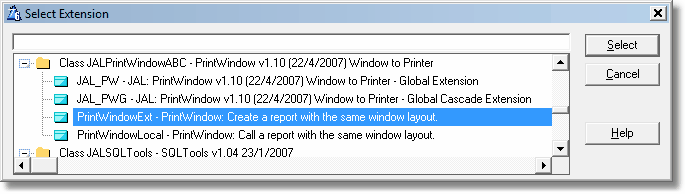
You may print the content of any window just dropping a Control Template on it. Enter the window and select the Control Template "PrintWindowExternal" from the list.
Important: your report is going to take the data out of the window. If your window is designed with a window-only font (Like MS Sans Serif), the report won't print as accurately as it should. See Replace Font with.
When you drop the Control Template on the window, you will see a button like this:
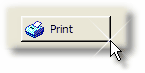
You can customize the button as you like.
If you enter the "Extensions" button on the procedure properties, you will see the PrintWindow local extension like this:
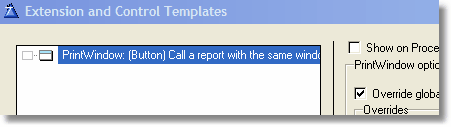
Note the "(Button)" identification in the name. This is because this extension belongs to the button control template you populated on the window.
If you populate this template when you also select the cascading global extension, you will see two local extensions, like this:
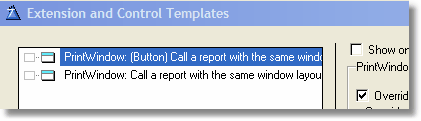
Each one of them has its own set of configuration values. You can select a set of values for the local extension activated by hot key, and a different set for the button activated template.
If you press the right button on the mouse over the PrintWindow button on the window, and select the "Action" menu, you will see a dialog window like this: