You may have several reports for PrintWindow in your app, one for each need.
You may import the report directly from the TXA file supplied with the examples. You'll find the following files:
PWRepAP55.TXA - Portrait ABC report for Clarion 5.5.
PWRepLP55.TXA - Portrait Legacy report for Clarion 5.5.
PWRepAP6.TXA - Portrait ABC report for Clarion 6.x.
PWRepLP6.TXA - Portrait Legacy report for Clarion 6.x.
PWCPCSAP6.TXA - Portrait ABC CPCS report for Clarion 6.x (UnivABCReport).
PWCPCSLP6.TXA - Portrait Legacy CPCS report for Clarion 6.x (UnivReport).
Just import them into your APP using the "File", "Import Text" menu option and customize them as you want.
Either you start the report from scratch or import them from a TXA file, you may want to follow these steps to adjust the report design to your needs and make it properly work with PrintWindow. Even if you imported from TXA, you have to pay attention to points 2c, 5 and 6.
1) Erase all the bands but the detail band, unless you want to put something on those bands (Like a business Logo on the footer or a copyright notice on the footer, for example)
2) Enter into the properties of the detail band and make the following changes:
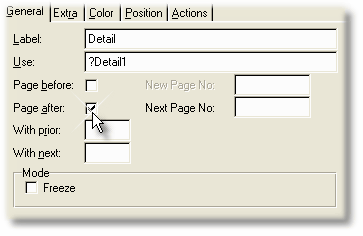
a) Create the "Use" variable and name it whatever you want.
b) Tick the "Page after" option if you want that each Tab prints on a separate page. If you don't, each window may or may not fit in a page, depending on the window size and the report layout.
c) Configure the report previewer (or direct printing) as you like.
3) If needed, enter the Report properties and in the "Paper size" Tab change the report size and/or the orientation to "Portrait" or "Landscape". This makes room for taller or wider windows.
4) Change to "Page Layout View" and adjust the margins and position of the detail print area and the header and footer as well, if you have them.
5) If you only declare the report procedure in the global setting, then your report will be "orphaned" in the tree procedures list in your app.
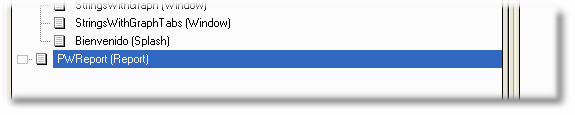
If that's the case, you have to enter the procedure properties and tick the "Declare Globally" option as shown below:
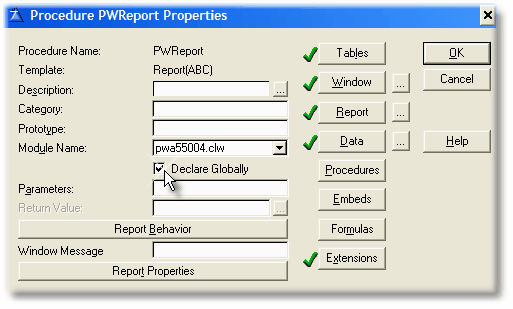
6a) For Clarion 5.5 the report must act upon a valid file which must have at least one record. It doesn't matter which file as the record will be discarded, but it is needed anyway. So you must declare a file in the File Schematic. Pick any file you like.
6b) For Clarion 6.x, you have to declare the "data source" of the report as "Memory". You still have to declare a valid file in the File Schematic, but the file won't be accessed at all. For doing this enter the "report properties" button (the one below, to the left of "extensions"), then select "Memory" in the "Data Source" field.

7) Set up the Window Title.
8) Enter the local extensions and select the "Detail band" as follows:
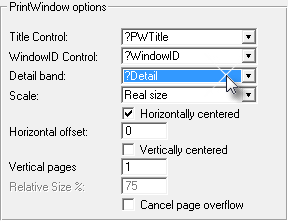
9) Set up the Scale.
Note that you may have several reports with distinctive characteristics (for example, one portrait and other landscape), and you may call the appropiate one from the Report to call in the local extension. Just name the most often called report in the global properties to save some work.