This option makes sense only if you have the WindowID template.
You might set up a window information text by creating a single STRING or TEXT control in the report header. Then, you name which string control will act as window information text, in the local extension for the report, using the "WindowID Control:" prompt.
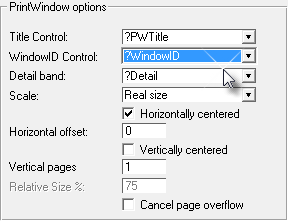
Inside the report, you should create the string or text control with the position, font, size and rest of attributes that you want the window information to have for all the windows.
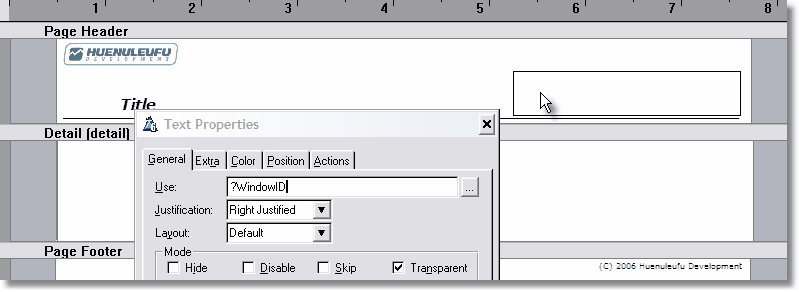
In this example, I picked an Tahoma size 8, and right aligned to the right of the header page. To use a "text" type control, populate a variable text control and replace the "Use" variable with any equate you want (like for example the one shown above).
As you can see, you have total control on how the window information will print. You can mix it with whatever you want, i.e. graphics, your business logo, background, etc.
As with the title, you define the separation between the window information and the printout as well, setting up the page header band height.
As the report printout may have several pages, I recommend that you use the header for the window information, so you can see it in every page. If you choose the detail area instead, the title will print only in the first page.
You can actually pick any band you want to print the window information, what's important is that you specify which control will hold the information in the local extension for the report.