Your WindowID template will be active by default. If you want to handle it activation externally to your program, you have to deactivate the "Always active" checkbox.
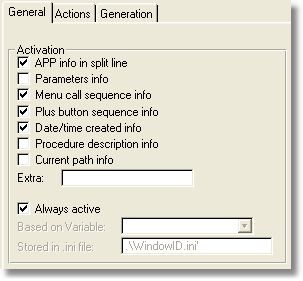
APP info in split line: When this option is off, the app name follows the procedure name. When it is on, the app name is in a separate line, by itself.
Parameters info: Switch this option on or off to include the information about the procedure's parameters definition in the output.
Menu call sequence info: Switch this option on or off to include the information about the menu sequence you have to follow to execute the procedure. Note: this will show only the sequence from the menu to the first opened procedure (i.e. the one called from the menu).
Note: Menu items are separated by a dash "/". For example, in Client/Maintain Client + Recurring Services + View Generated Services, "Client" is one menu and "Maintain Client" is another menu.
Plus button sequence info: Switch this option on or off to include the information about the buttons pressed from the first procedure and following. This one combined with the menu call sequence will give you the complete path on how the user reached the procedure.
Note: Buttons are separated by a plus sign "+". For example, in Client/Maintain Client + Recurring Services + View Generated Services, "Recurring Services" is one button and "View Generated Services" is another button.
Date/time created info: Switch this option on or off to include the information about the procedure's date and time of creation in the output.
Procedure description: Switch this option on or off to include the procedure's description (as entered in the app) in the output.
Current path info: Switch this option on or off to include the current full path in the output.
Extra: Fill in here with any expression you want to add to your tool-tip. For example, '(c) My company', or 'Build number:' & GLO:Build. What you add here will display in the bottom line of the WindowID pop-up.
When you deactivate the "Always active" checkbox, you can fill the following settings.
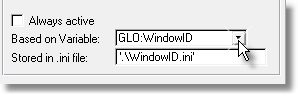
Based on Variable: Here you select the global variable that will content a BYTE value to control the template.
A value of zero (0) will deactivate the template at run-time. A value of one (1) will activate it. Therefore, if you select a variable here and you do nothing to load this variable with a value, the template will be deactivated by default.
If you don't select a variable here, the template will be always activated at run-time.
Stored in .ini file: Here you can enter the path and name of the .ini file which will hold the value of the variable.
You can use the code template supplied to load the .ini value into the variable.